
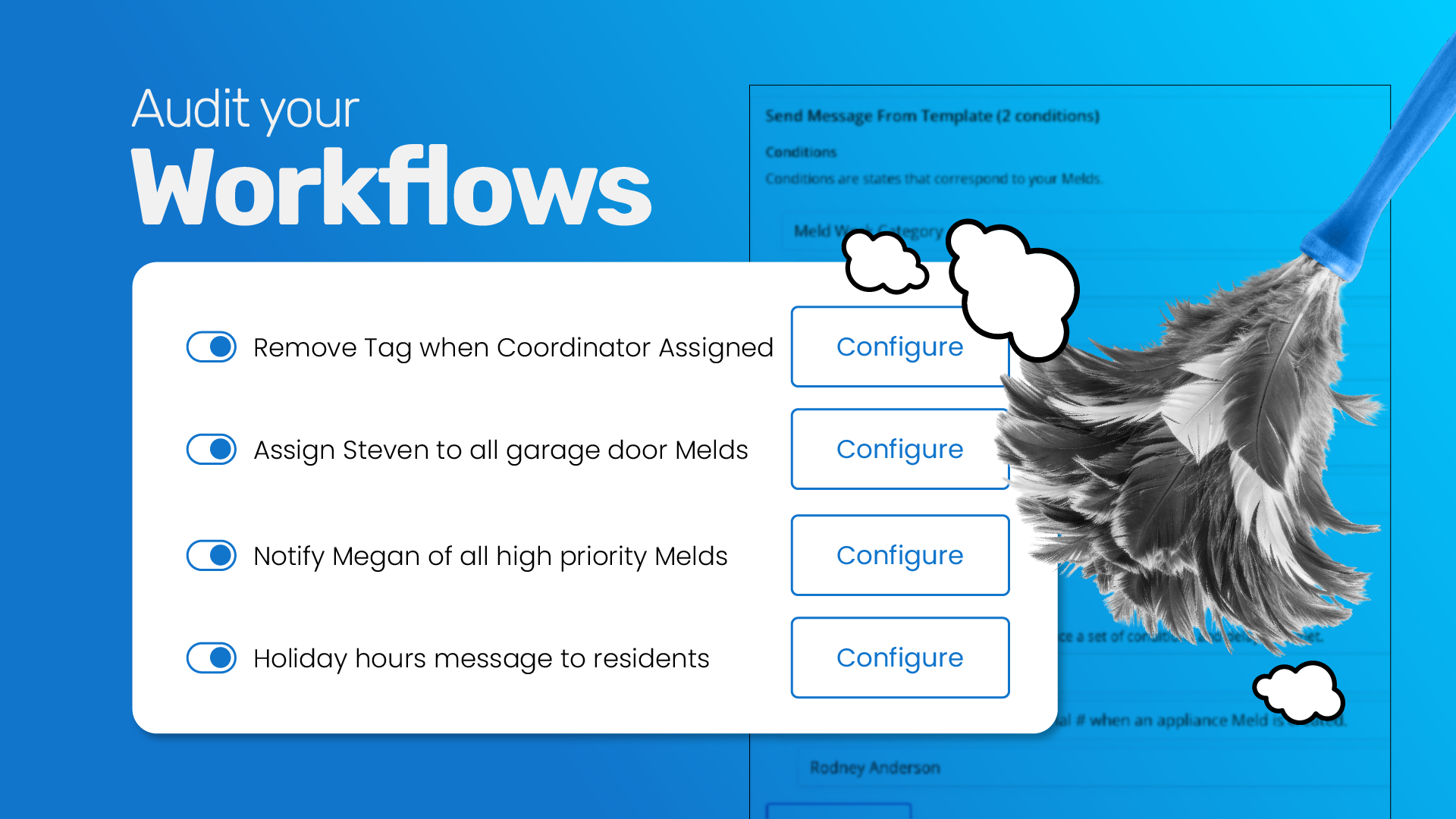
Workflows do real work. Set one up once, and it can route the right Meld to the right person, bump priority when it should, or send the right message at the right moment.
That’s the whole point. Your team gets the work done without having to remember every step.
That kind of consistency is a big part of running a strong maintenance operation. The more you can build repeatable processes into the way your team works, the less you have to rely on someone remembering what to do next.
But workflows don’t check themselves.
They don’t know when your team grows, your process changes, or a tag you built a workflow around stops getting used. They just keep doing exactly what you told them to do.
If the instruction is stale, the workflow won’t tell you. You have to go look.
What a Workflow is Made of
Every workflow in Property Meld breaks down into three parts:
- A trigger. The event that starts things off, like a Meld getting created or a Meld getting updated.
- A condition. The filter that decides whether the workflow acts, like priority or a Meld Tag.
- An action. What happens once the condition is met, like a notification going out or a status changing.
That structure is simple by design. It’s also why a workflow is only as good as whether those three parts still match reality. When your process shifts and the workflow doesn’t shift with it, nothing breaks. It just quietly does something different than what you expect.
Where Workflows Tend to Drift
A few places worth checking:
Priority conditions. If you’ve built workflows around Normal, High, or Emergency, confirm those conditions still match how your team uses those levels today. Priority is one of the most common workflow conditions, and one of the easiest to set once and never revisit.
Tag conditions. Meld Tags work as conditions in workflows. That only holds up if the tags themselves stay active. A workflow built around a tag your team stopped using won’t error out. It just stops firing, quietly.
Triggers. Some workflows fire when a Meld is created, others when a Meld is updated. Confirm the trigger you picked still matches the moment you want the workflow to act.
Notifications and actions. Teams grow and roles change. A workflow that’s still notifying someone who left six months ago isn’t helping anyone.
How MAX™ Fits in
If you use MAX™ to screen incoming maintenance requests, check this too.
MAX checks every Meld against your account’s emergency list and assigns each them a priority automatically. Since priority drives so many workflow conditions, confirm your workflows are watching for the same priority values MAX sets.
That connection matters. You want the information captured during intake to carry through to what happens next, especially when you’re relying on a workflow to make sure an urgent Meld gets the right attention.
Make the Audit a Habit
While you’re in there, ask three bigger questions:
- Is this workflow still delivering value? Some get built for a situation that no longer exists.
- Is there a gap? As your portfolio grows or your process changes, you may need a workflow that doesn’t exist yet.
- Does this match how your team works today? What made sense a year ago isn’t always what makes sense now.
Operational excellence doesn’t come from setting a process once and leaving it alone. It comes from continually looking at what’s working, what’s changed, and where there’s room to improve.
Your workflows are part of that process. Take a few minutes to make sure they’re still doing what you built them to do.
Need a second set of eyes? Your Customer Success Manager or our Support Team can walk through them with you.