Use this checklist to get up and running with Property Meld in no time.
Technician Mobile App Checklist (English)
Use this checklist to get up and running with Property Meld in no time.
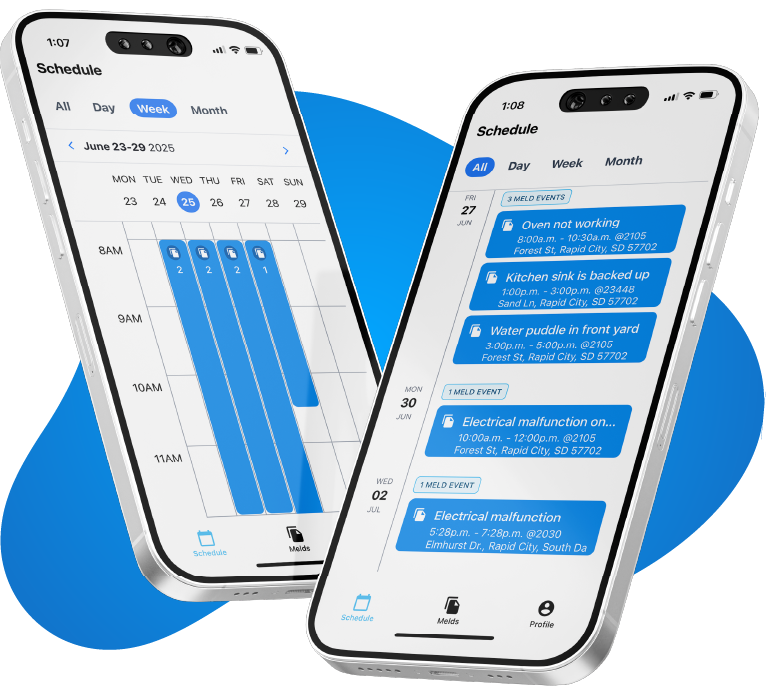
Check your schedule
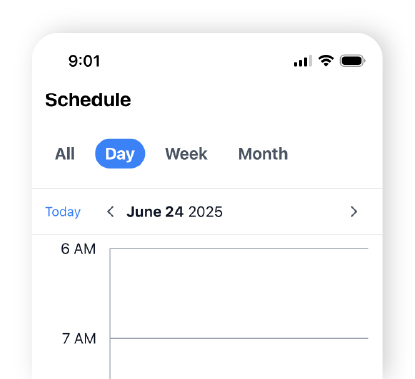
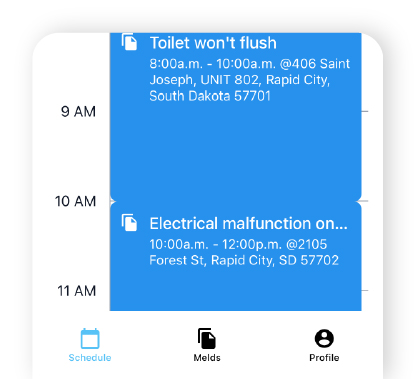
The Schedule tab shows today’s jobs. Review each morning to plan your route efficiently.
Here's why the scheduling function in the app is epic AF
Open the Meld
The Melds tab shows assigned work. Tap for details, photos, map, and contacts. Use the map for navigation.
Check in when you arrive
Tap Check In before starting. This logs your time on the job. If you forgot to check in, you can manually adjust the times when checking out.
null
Take photos
Easily add photos using the Camera icon found in the Details tab. It’s important to take “before” and “after” photos to document your work quality and protect yourself and your employer.
null
Add notes
Describe the work completed, parts used, or any issues found, using the Notes tab.
null
Reply to chats quickly
Message managers and residents using the Chat tab.
null
Finish & check out
When you’re done with a job, tap Finish Meld, enter details/time and then tap Save and Close. And don’t forget to check out!
null
FAQ
I forgot to check in for a job. What should I do?
When you check out, manually enter your actual start time. Be as accurate as possible.
How many photos should I take?
At a minimum, we recommend one before the job and one after. Take more if the job is complex or there’s existing damage.
What should I include in my notes?
Notes are ideal for describing the work done, any parts/materials used, any problems found, and the condition of the work when you have finished.
Why don't I see any Melds assigned to me?
The Property Meld app only shows work assigned to your name. Contact your coordinator if you expect to see jobs, as it’s likely the work just hasn’t been assigned to you.
Can I view my completed work?
Yes, completed work can be found by going to the Melds tab > Filter icon > Select “Closed”
How do I reschedule an appointment?
The easiest way to reschedule an appointment is by contacting your coordinator in the chat section of a specific Meld. To avoid communication issues, do not reschedule without prior approval.
Why is the app not working?
If you experience any problems with the app, contact Property Meld support, found in the Profile tab. Additionally, inform your coordinator of any issues.
Do I need to have internet service to use the app?
Internet service is not needed to use the Property Meld app. When in offline mode, the app will store recent data so you can still check in/check out, add notes, and take photos. When you re-enter an area with internet service, this information will auto-sync.
Help Resources
For more assistance, please visit Property Meld’s Help Center.
If you would like in-depth Property Meld training, check out our Technician App Certification Course.